Storage
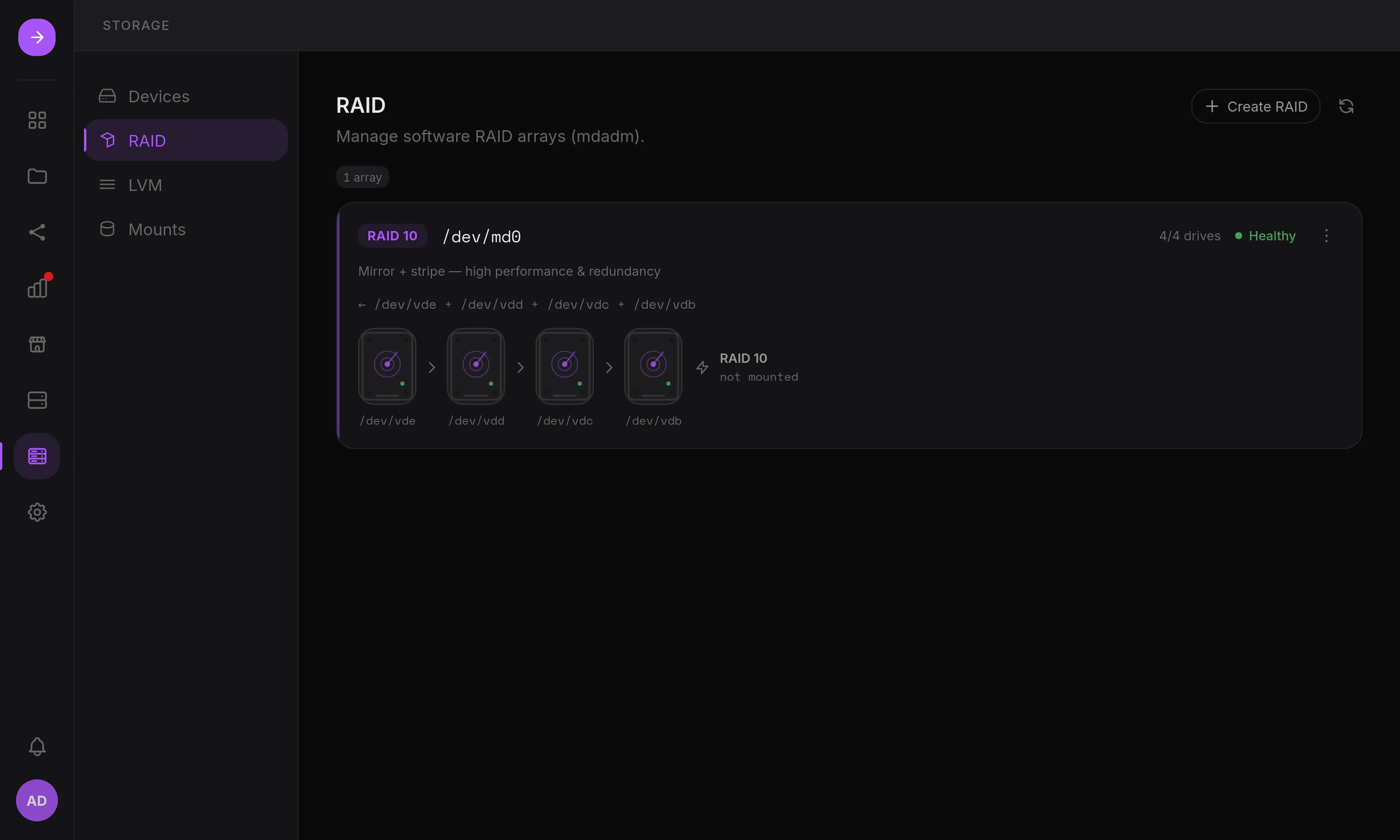
The Storage app manages the server’s real disks: S.M.A.R.T. health, mdadm RAID,
LVM and mounts. It opens on Volumes, where the data lives.
Volumes
Section titled “Volumes”Each data filesystem is listed with its redundancy (mirror, RAID 5…), space, health (degraded or rebuilding array, missing at boot, nearly full, SMART) and what uses it (Places, shares, apps), next to the free disks and the system disk’s free space. Each volume has its own page with Overview, Structure and Activity tabs: what it is made of from the folder down to the disks, and the operations recorded on it.
- Create a volume: Storage > Volumes > Create volume goes from free disks to a ready-to-use volume in one flow: choose the disks, the redundancy (mirror, RAID 5, 6, 10, or none), the LVM layout, the filesystem label and the folder, who owns it, and, for admins, a Place and an SMB share.
- Expand a volume: from a volume’s page (Expand…), grow it in place without reformatting: into the free space of its volume group, with a disk added to its RAID 5/6 array or to a volume without redundancy, or into the larger disks of its mirror. A RAID reshape takes hours: the volume stays usable, and HSI grows LVM and the filesystem (ext4, XFS, btrfs) when it ends, then sends a notification with the new size.
- Remove a volume: Overview > Remove this volume stops sharing its Places, unmounts it, deletes its logical volume (and its volume group and array when they serve only this volume), then erases the disks so they show as free again. Remove stays disabled until the volume name is typed; a volume an app stores data on cannot be removed.
- Mount: an unmounted volume can be mounted from the Volumes page, with its
owner, an optional Place, and “Persist across reboots” (an
/etc/fstabentry).
Each disk shows its stable /dev/disk/by-id name next to the kernel name
(/dev/sdb), its S.M.A.R.T. health and temperature, and the volumes it carries.
A disk can be given a label (“bay 3, top”) that follows it by serial number.
Partitions and formatting are available on free disks; disks used by an array or
a volume group are read-only in the UI.
Arrays and volume groups
Section titled “Arrays and volume groups”Each RAID array and LVM volume group has its own page: state, members, what it carries and its operations.
- Replace a failed disk: members are listed as Active, Rebuilding, Failed or Spare with their model and serial number. Mark a disk as failed, remove it and add a replacement (only free disks large enough are offered); rebuild progress is shown live.
- Import existing storage: arrays and volume groups found on the disks but not running (disks moved from another machine, or after a reinstall) are listed and can be assembled or activated without formatting.
Descriptions and drift
Section titled “Descriptions and drift”Each volume is described in /etc/hsi/storage/, readable without HSI: its disks by
serial number, its array, LVM, filesystem and mount. When the server no longer
matches it (a disk swapped by hand, an fstab line removed, an array stopped), the
volume’s page says what differs, with Reapply to put the server back in line
and Accept current state to keep the change. See
Storage descriptions.
Every change is a plan
Section titled “Every change is a plan”Formatting, partitions, arrays, LVM and mounts are shown as a plan before anything runs: every command, every file change as a diff, and the disks that will be erased with their model and serial number. See Plans and missing volumes.
Without HSI
Section titled “Without HSI”Arrays, volume groups and mounts are standard mdadm, LVM and /etc/fstab
configuration: see RAID and
Mounts.